How to Use Alexa as Your To-Do List Manager: Setup, Commands, and a Daily Workflow
You can use Alexa as a to-do list manager in two distinct ways. Use Alexa's native Lists for the fastest, zero-install setup, or use a custom skill such as My Task by Listee when you want voice-captured tasks to live in an organized task app. The two paths store tasks in different places and use different commands.
This guide shows both setups, explains when a reminder is better than a list item, and turns voice capture into a practical capture-review-do routine. Commands and product behavior are based on documentation checked on August 9, 2026; menu labels and availability can vary by country, account, device, and Alexa version.
Choose where your tasks should live
Before saying a command, decide where you want to review the result.
Native Alexa Lists keep the item in Amazon's list system. They need no third-party account and work well for a simple shopping or to-do list. A phrase such as “Alexa, add batteries to my shopping list” targets this path.
My Task by Listee is a service-backed custom skill. It requires a Listee account, account linking, and the invocation name “my task.” A phrase such as “Alexa, ask my task to add batteries” targets Listee instead of Alexa's native shopping list.
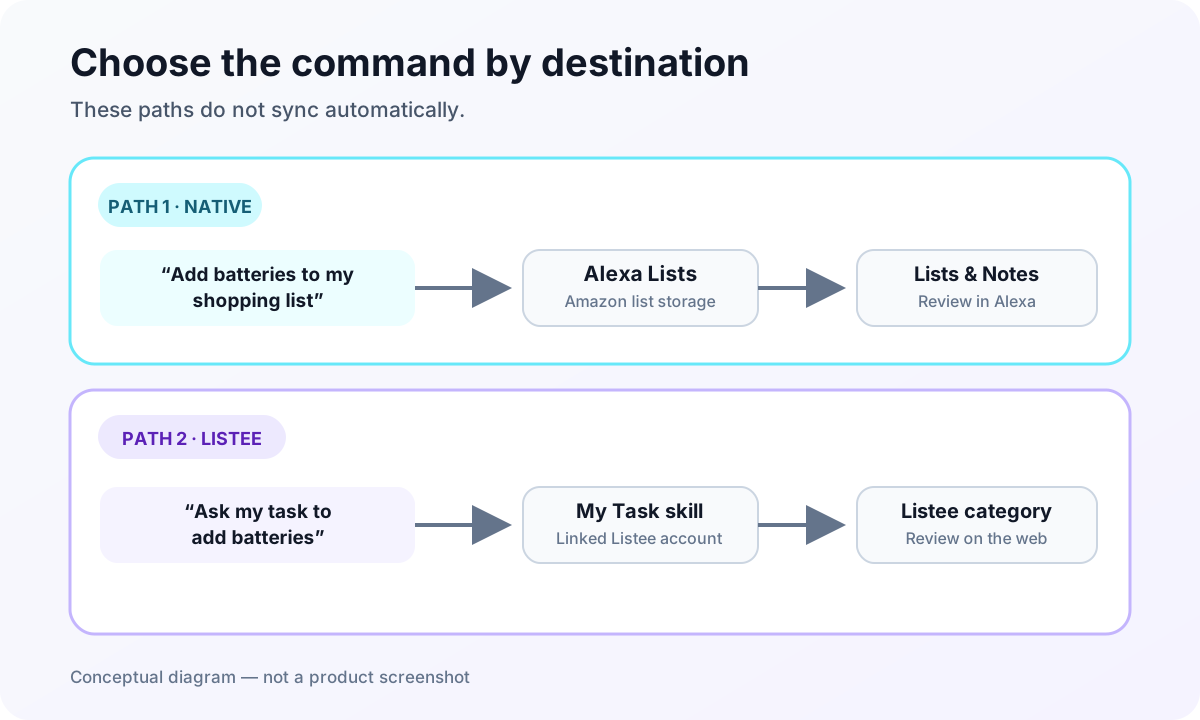
The invocation determines the destination. Native Alexa items do not automatically sync into Listee.
Amazon ended support for direct third-party access to native Shopping and To-Do lists on July 1, 2024. Custom skills can still maintain data in their own services, but older tutorials that promise automatic list syncing may no longer be current.
If you want to compare specialized options before choosing, see the current Alexa task-management skill comparison.
Before you start: account, device, and privacy checks
For either path, make sure your Alexa device is online and connected to the Amazon account you intend to use. For a custom skill, also confirm that the linked service account is the one that should receive tasks.
Keep household visibility in mind. Amazon's Alexa+ task documentation says tasks and reminders are visible to everyone in the household. Profiles may personalize some Alexa responses, but that is not a promise that a task is private. Avoid putting passwords, medical details, confidential client names, or other sensitive information in spoken household tasks.
Amazon says that after Alexa detects the wake word, the voice request is sent to its cloud for processing. Review the current Alexa privacy controls and FAQs if voice history or household access affects what you are comfortable capturing.
Finally, check regional availability in your Alexa app. Alexa+, individual skills, supported languages, and device features are not identical worldwide. This guide focuses primarily on the English-language US workflow.
Option 1 — Set up and use Alexa's native lists
Native lists are the quickest way to begin because there is no skill to enable or external account to link.
Create a custom list in the Alexa app
Amazon's current instructions direct users to:
- Open the Alexa app.
- Select More.
- Select Lists & Notes.
- Select Create List.
- Give the list a short, distinct name such as “Weekend” or “Hardware Store.”
The exact navigation label may change in a future app version, so use Amazon's current custom-list instructions if your screen differs.
Use native list commands
Amazon's Lists help page documents command patterns like these:
| Goal | Example native command | Expected destination |
|---|---|---|
| Create a list | “Alexa, create a weekend list” | A new native Alexa list |
| Add an item | “Alexa, add wash the car to my weekend list” | The named native list |
| Add a shopping item | “Alexa, add batteries to my shopping list” | Alexa's native shopping list |
| Remove an item | “Alexa, remove batteries from my shopping list” | The named native list |
| Clear a list | “Alexa, clear my weekend list” | Removes items from that native list |
Use a list name that sounds different from common task words. Short names are easier to remember, but names such as “Tasks” and “To-Do” can be ambiguous when several household members have habits built around different Alexa surfaces.
After each test command, open Lists & Notes or another supported Alexa list surface and confirm the item appears. That confirmation matters more than Alexa merely saying “okay”: it tells you which list received the item.
Native lists are a good endpoint when the task is lightweight and everyone who needs it already uses Alexa. If you need categories, a dedicated review screen, or task processing outside Amazon's list surfaces, use the Listee path below.
Use reminders for time-bound tasks
A list item records something you intend to review. A reminder asks Alexa to bring something back to your attention at a particular time or after a condition. Use that distinction to prevent an overloaded to-do list.
- Put “buy printer paper” on a list when it belongs in your next shopping review.
- Create a reminder for “join the client call at 2:55 p.m.” because timing is the point.
- Use a recurring reminder for a repeated prompt such as taking bins out every Thursday, if recurring reminders are available on your account.
If Alexa+ is available, Amazon documents a combined task view for reminders and to-dos, plus recurring and follow-up reminders. Amazon announced broad Alexa+ availability for US customers, but this does not establish identical features in every country. Check what your own Alexa app offers before relying on a follow-up or assignment workflow.
Even when reminders and to-dos appear together in one view, keep the mental model separate: lists hold commitments; reminders deliver prompts. That makes the eventual review easier because only truly time-sensitive items generate interruptions.
Option 2 — Connect Alexa to Listee
Choose Listee when you want a spoken task to land in a category-based task manager rather than a native Alexa list.
1. Create and prepare your Listee account
Create a free Listee account, sign in, and create or choose the category that should receive voice-captured tasks. A neutral category such as “Inbox” or “Voice capture” works well when you want to sort tasks later. A specific category such as “Shopping” is better when nearly every spoken item belongs in one place.
2. Link Alexa and Listee
In Listee:
- Open Settings → Alexa Integration.
- Select Link with Alexa.
- Sign in to the Amazon account used by your Alexa device.
- Review and allow the requested account-linking access.
- Return to Listee and confirm that the Alexa connection shows as connected.
This is a standard custom-skill account-linking flow: Alexa receives authorization to call the skill on behalf of the linked Listee account. It does not turn Alexa's native lists into Listee lists. Follow the current Listee Alexa integration guide if the on-screen wording differs.
3. Select Alexa-enabled categories
In the Alexa Integration settings, select the category or categories Alexa may use, then save the changes.
As checked on August 9, 2026, the Free plan supports one Alexa-enabled category. With one category selected, the skill routes captured tasks there automatically. Plus supports multiple Alexa-enabled categories; when several are active, the skill asks you to choose a category by number. Plan limits can change, so compare the current Alexa category limits before deciding whether you need an upgrade.
4. Use the exact “my task” invocation
For one quick capture, use the documented pattern:
“Alexa, ask my task to add milk.”
To capture several tasks in one session:
- Say, “Alexa, open my task.”
- After the skill responds, say, “add milk.”
- Continue with another short task.
- Say “stop” or “exit” when finished.
| Goal | Example Listee command | Expected destination |
|---|---|---|
| Add one task and close | “Alexa, ask my task to add milk” | The selected Alexa-enabled Listee category |
| Open a capture session | “Alexa, open my task” | The My Task by Listee session |
| Add another task in the session | “Add printer paper” | The selected category, after a numbered choice when multiple categories are enabled |
| End the session | “Stop” or “Exit” | Closes My Task by Listee |
If one category is enabled, the task goes there automatically. If multiple categories are enabled, respond with the number Alexa gives for the intended category. The live English skill name and invocation were verified on August 9, 2026, but recognition quality was not measured on every Echo model or account. Treat these as documented commands and verify the result in Listee.
Do not shorten this to “Alexa, add milk to my list” when you mean Listee. That native-style command can send the item to Amazon's own list system because it does not invoke my task.
5. Confirm and process the captured task
Open the selected Listee category and confirm the task appears. Voice capture ends when the task reaches Listee; all further processing happens in the web interface. There you can complete it, edit its title, delete it, reorder it, or move it in bulk. These are documented Listee task-management actions, not Alexa voice mutations.
If you share the destination category, the other person must already have a Listee account. Current Listee documentation says collaborators should refresh the page to see changes, so allow for that step rather than promising instant real-time updates.
Build a capture-review-do routine
Voice capture works best as the front door of a system, not as the whole system.
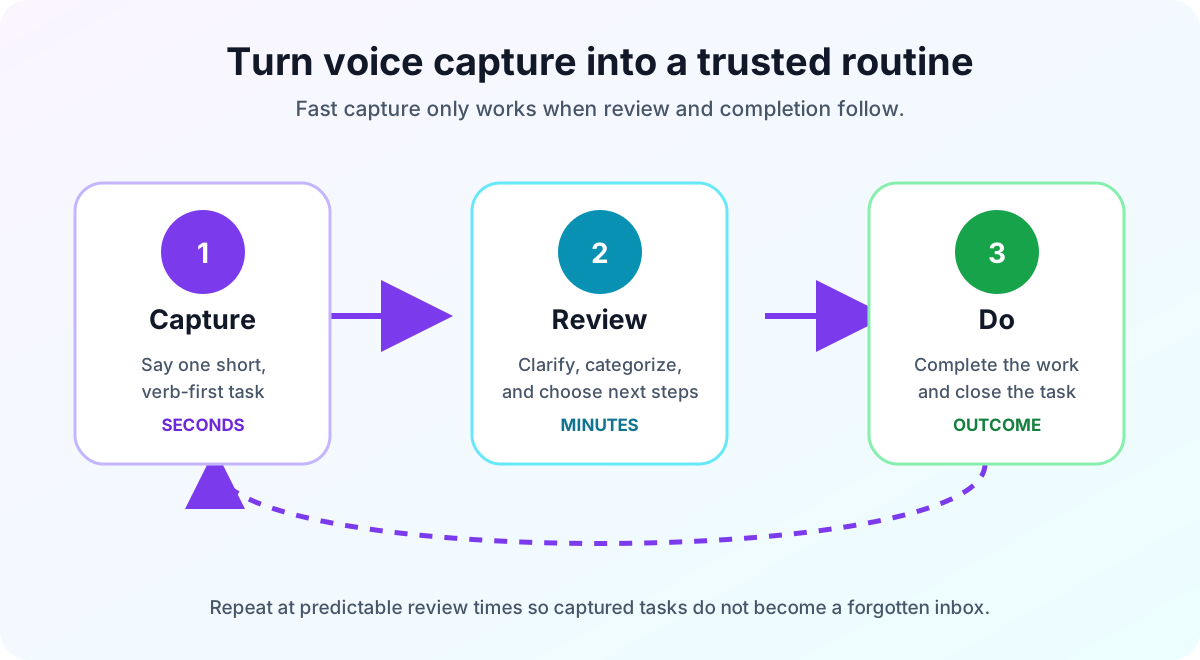
Capture
Say the task as soon as it appears, using a short verb-first title: “order printer paper,” “send Maya the draft,” or “book dentist appointment.” Avoid packing due dates, background, and several actions into one spoken item. The goal is reliable capture, not perfect planning at the microphone.
Review
Set one or two predictable review points—for example, after breakfast and before ending work. Open the app that actually stores the task. In Listee, clarify vague titles, move tasks into the right categories, remove duplicates, and decide what needs attention next.
Do
Work from the reviewed list rather than repeatedly asking Alexa what you might have captured. Complete the task in Listee's web interface, or use a reminder when a future prompt is essential. This separation keeps voice interaction fast while leaving decisions and detailed editing to a visual interface.
A useful rule is: capture by voice in seconds; organize on screen in minutes. If review never happens, faster capture only creates a larger forgotten inbox.
Troubleshooting when a task goes to the wrong place
Work through these checks in order:
- Identify the destination you intended. Was it a native Alexa list or a Listee category?
- Check the invocation. Native commands name the list. Listee commands include “my task.”
- Listen for the responding skill. The response should make it clear whether a custom skill opened.
- Confirm account linking. In Listee's Alexa settings, verify the connection status.
- Confirm the enabled category. On Free, exactly one category can be selected. With multiple categories, listen for the numbered choice.
- Check both apps. Look in Alexa's Lists & Notes and in Listee before assuming the task was lost.
- Check device and network state. Confirm the device is online and using the expected Amazon household.
- Verify regional availability. A skill or Alexa+ feature documented for the US may not appear in another marketplace.
If an old tutorial tells you to connect a task service directly to Alexa's native To-Do list, verify the instruction with the service's current first-party documentation. The 2024 platform change means a high-ranking article can still describe a retired workflow.
For Listee-specific problems, re-open the Alexa integration troubleshooting guide and test with a harmless, distinctive item such as “replace hallway bulb.” A distinctive phrase is easier to find in either destination than “test.”
Frequently asked questions
Where is my Alexa to-do list?
Native list items are stored in Alexa's list system and can be reviewed through supported Alexa surfaces such as Lists & Notes in the app. A task added through My Task by Listee is stored in the selected Listee category. Check the command's invocation if you are unsure which destination received it.
Should I use a list item or a reminder?
Use a list item for something you will review with related work. Use a reminder when Alexa should prompt you at a time or on a recurring schedule. Alexa+ may display both in a combined task view, but their purposes remain different.
Can I share Alexa tasks with my family?
If Alexa+ is available on your account, Amazon says its tasks and reminders are visible to everyone in the household, which is also a privacy consideration. Listee categories can be shared with existing Listee users; current help says collaborators refresh the page to see changes. These are separate sharing models.
Do old Todoist or other list-sync guides still work?
Do not assume they do. Amazon ended the List Skill API in 2024. Look for a current skill listing or a current first-party setup page from the task service before following an older sync guide.
Start with one trusted capture path
Alexa can be a useful to-do manager when every command has a predictable destination and every captured task has a review time. Start with native Lists for minimal setup. Choose Listee when you want voice capture to feed organized task categories and a dedicated web review process.
To try the structured path, create a free Listee account, connect My Task by Listee, and select one category for voice capture. Then use the Alexa task-management comparison if you want to evaluate work, shopping, or repeatable-checklist alternatives.